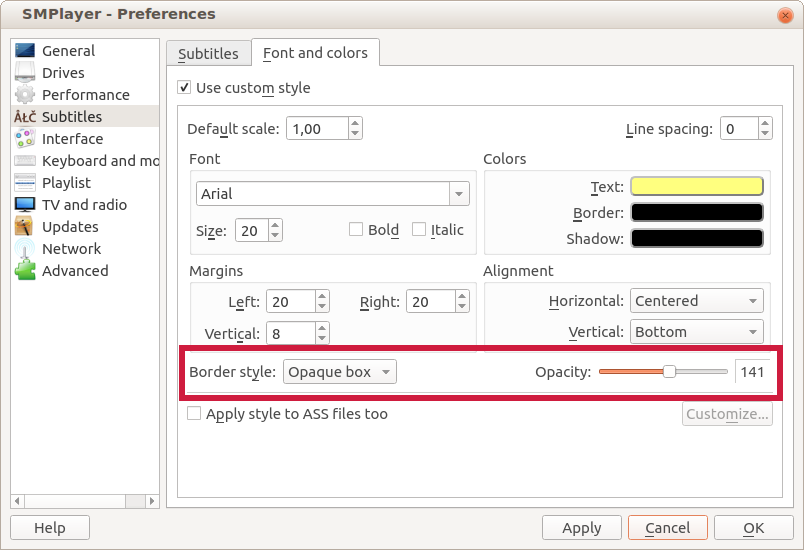
Now in SMPlayer 18.2.2 is possible to display subtitles with a semi-transparent background.

Go to Preferences -> Subtitles -> Font and colors, select Opaque box as border style, now you can adjust the level of opacity of the background.
Other changes in this version:
- The option Open -> URL can now also load YouTube playlists.
- The options for the preferred number of track for audio and subtitles are back.
- (mpv) Now the direct3d is the default video output for Windows, since some users reported problems with the gpu output.
Where is Language Toolbar (F6) in this version?
The language toolbar was removed some time ago but now there are two buttons in the toolbar to select the audio and subtitle tracks.
Is it possible to return to the language toolbar in future versions? I really liked those switches.
+1
I fully agree that the language toolbar should be returned.
how to I get the mouse wheel to control the volume instead of manual slider?
I did everything as the “Preferences -> Subtitles -> Font and colors” above, I got the semi-transparent background but also weird bars where the space between words are in the subtitle. What do I need to do to fix this? I checked with several videos and all have the same problem.
Here is screenshot of the problem:
[img]https://i.imgur.com/oZNKQuY.png[/img]
[img]https://i.imgur.com/EBlsk2i.jpg[/img]
That’s weird. What operating system are you using?
Linux Mint 18.3 “Sylvia” – Cinnamon (64-bit)